
Frequently asked questions
The app behaves strangely after a release - what can I do?
Section titled “The app behaves strangely after a release - what can I do?”Mobile apps (Android & iOS)
Section titled “Mobile apps (Android & iOS)”Mobile apps are usually updated automatically through the Google Play Store or Apple App Store. If the automatic update does not work, you can update the app manually:
- Open the relevant app store
- Search for the Stocadro app
- Tap “Update” if available
Detailed instructions
- Android (Google Play Store): Update apps - Google Play Help
- iOS (Apple App Store): Update apps on your iPhone or iPad
Web application
Section titled “Web application”If you have problems with the web application after an update, a hard refresh is recommended to clear the browser cache and load the latest version.
Hard refresh keyboard shortcuts
- Chrome (Windows/Linux):
Ctrl + F5orCtrl + Shift + R - Chrome (Mac):
Cmd + Shift + R - Firefox (Windows/Linux):
Ctrl + F5orCtrl + Shift + R - Firefox (Mac):
Cmd + Shift + R - Safari (Mac):
Cmd + Option + R - Edge:
Ctrl + F5orCtrl + Shift + R
Further resources
How can I correct mistyped entries in the mobile app?
Section titled “How can I correct mistyped entries in the mobile app?”Everyone mistypes something on their phone sometimes. Fortunately, incorrect entries are easy to correct. This applies to all list types, from loading lists to stock takes. There are two ways to do this:
Entering negative quantities
The input fields in the mobile app also accept negative quantities, so you can correct existing counts.
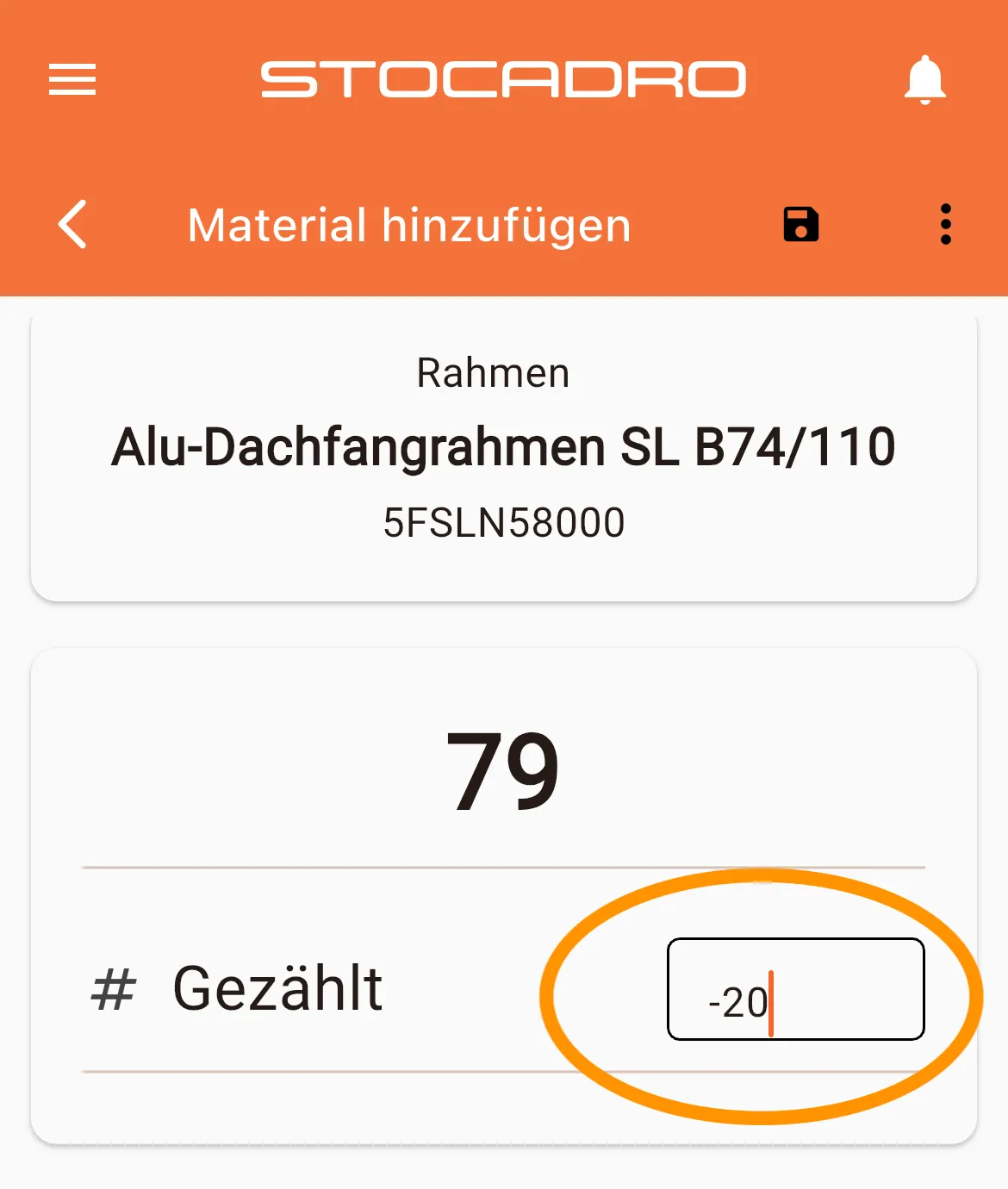
Note: On some Android devices, the minus sign is not shown directly on the keyboard. Instead, there are these keys
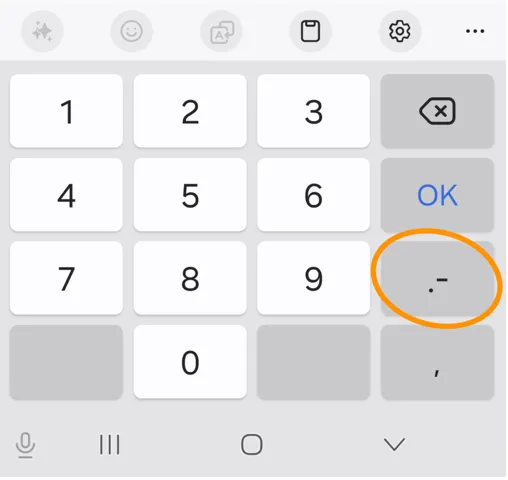
To enter a minus sign, you have to press them several times.
Resetting
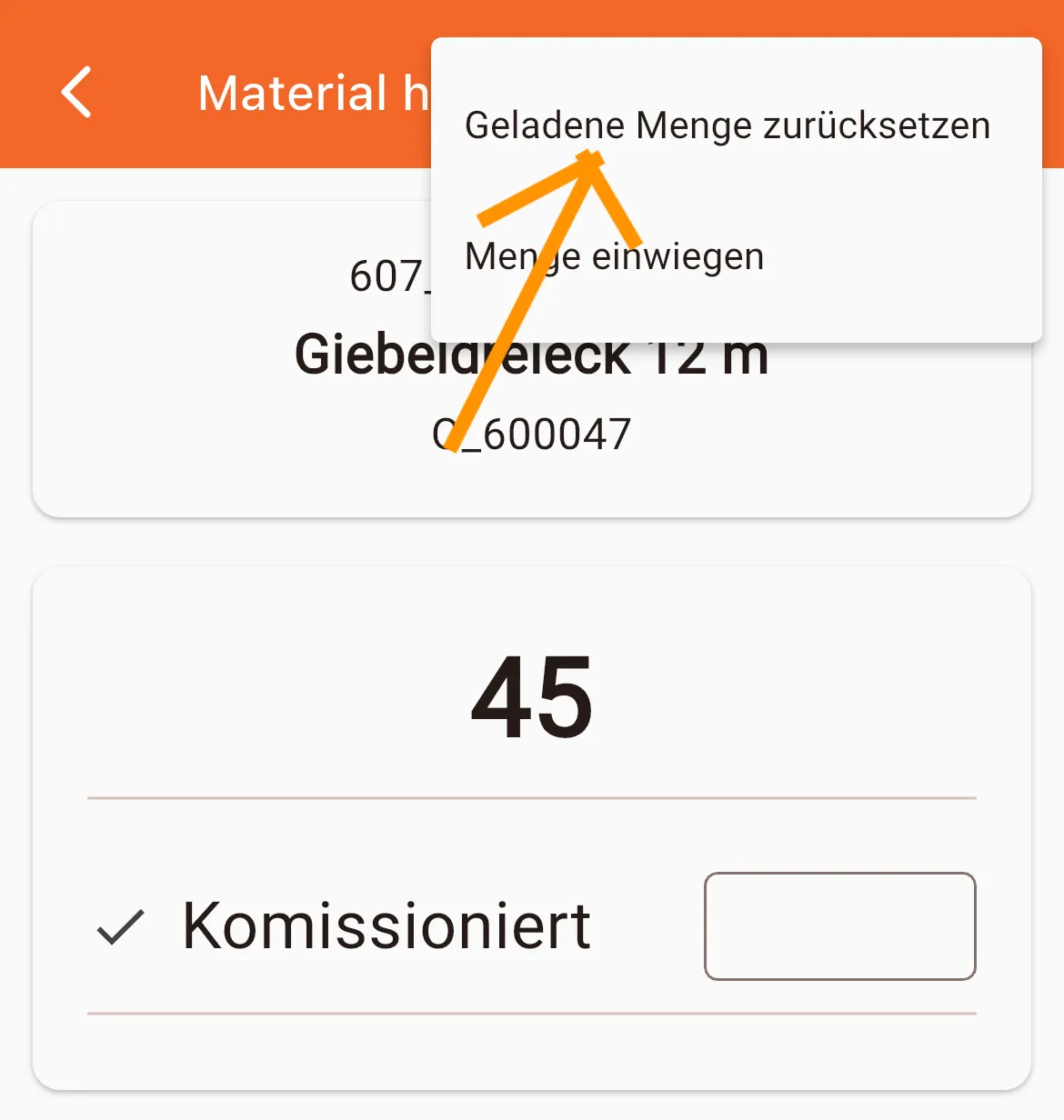
If you want to start over from scratch (and who doesn’t want that sometimes?), you can set the entered quantity to 0. To do this, select the “Reset loaded quantity” option in the three-dot menu (top right)
I received new parts for an article – how do I add them to stock?
Section titled “I received new parts for an article – how do I add them to stock?”There are two options:
Option 1 – Create a supplier order (recommended)
The cleanest way is to create a supplier order. This documents the goods receipt in a traceable way and automatically updates the stock.
Option 2 – Adjust stock directly
Alternatively, the stock can be adjusted directly in the stock view.