
Correction count
A correction count creates a stock taking event for selected parts only. Use it to check a specific group of parts or parts with low stock.
Select parts
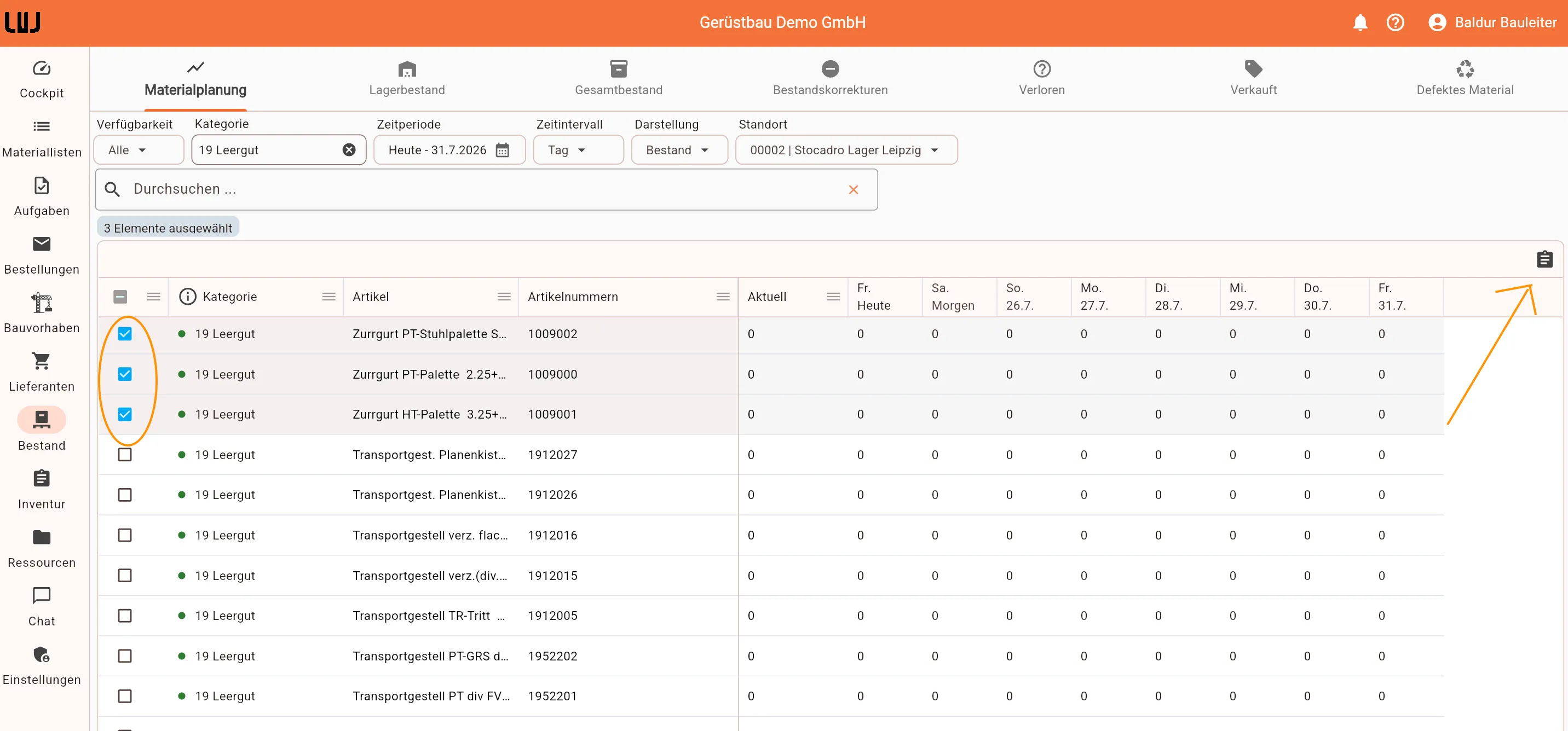
Section titled “Select parts”- Open Stock in the web app and select the Forecast tab.
- Narrow down the displayed parts using search or the Availability and Category filters. To find parts with low stock, select Below Minimum under Availability.
- Select the checkboxes for the parts to count. The checkbox in the header selects all currently filtered parts.
Create the stock taking event
Section titled “Create the stock taking event”Above the table, click the stock taking icon Create stock taking from selected parts.
Enter a name under Enter Event Name, click Next, and select one or more warehouse locations where the selected parts should be counted.
Stocadro creates a stock taking event for the selected locations. Its counting lists contain only the parts selected previously, and the new event opens automatically.
Perform the count
Section titled “Perform the count”Open the counting lists, enter the counted quantities, and set each completed list to Counted. When all lists are counted, complete the stock taking event to correct the stock of the selected parts.
For more information about the sections and statuses, see Full stock taking.