
Permissions
On this page you will learn how to manage permissions in Stocadro. Permissions control which functions and areas of the application may be used by which user roles. With permissions, you can tailor Stocadro precisely to your company’s needs.
In the web app you will find permissions under Settings.
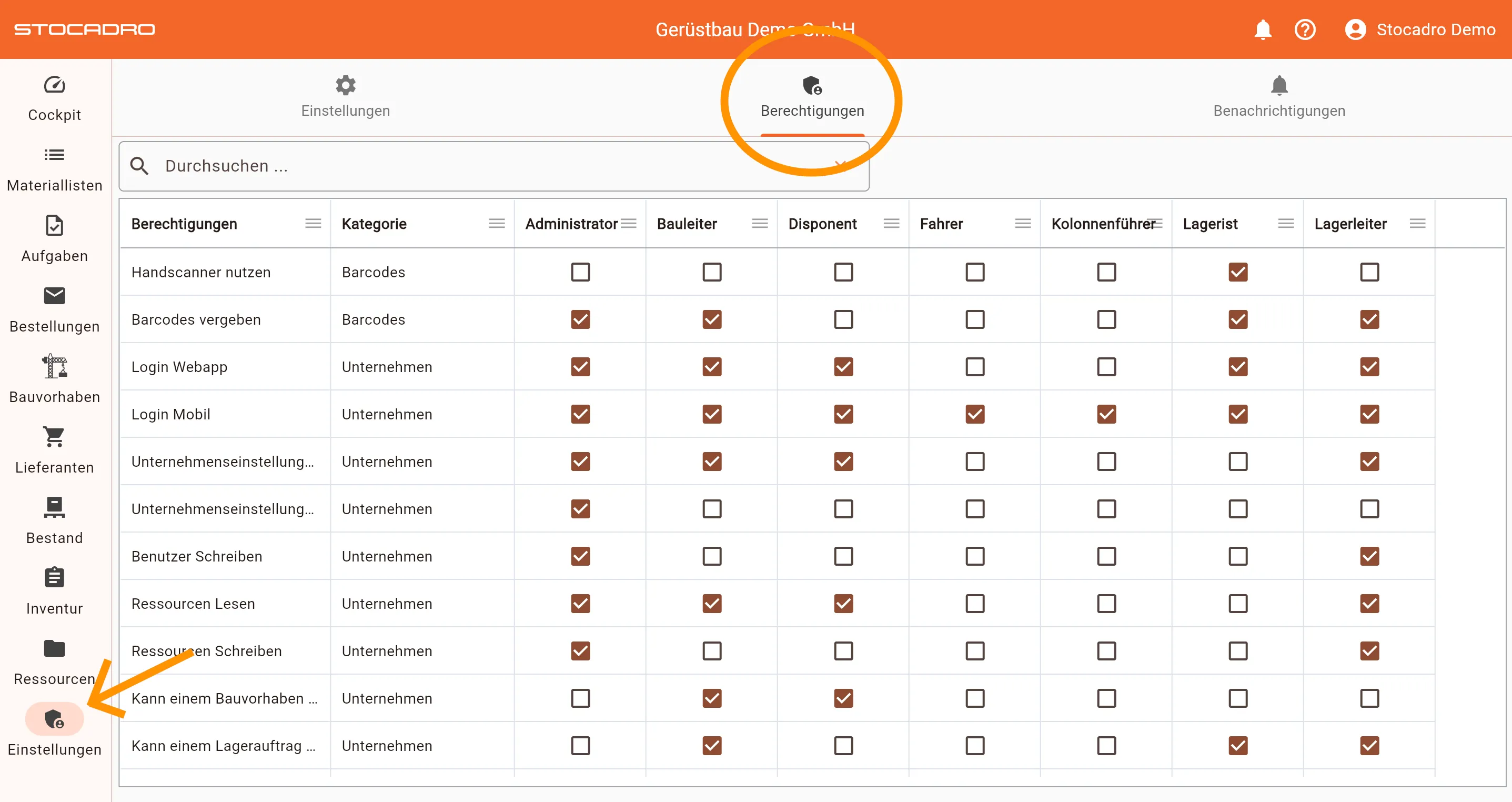
How it works
Section titled “How it works”Permissions can be assigned on a role-based basis. The following roles are available for selection (suggested area of responsibility in brackets, deviations are possible):
- Administrator (responsible for settings in Stocadro)
- Site manager (responsible for planning and creating material lists)
- Dispatcher (responsible for planning trips)
- Driver (responsible for carrying out driving tasks)
- Crew leader (responsible for ordering material)
- Warehouse worker (responsible for carrying out warehouse tasks)
- Warehouse manager (responsible for planning and assigning warehouse tasks)
To fine-tune the area of responsibility of individual roles, permissions are used. For each permission, it can be defined per role whether it is active or not. Some permissions also require the selection of a material list type or status.
To enable or disable a specific permission, proceed as follows:
- Find the desired permission in the table (use the full-text search for this).
- Check the box in the column of the relevant role to enable the permission.
- Remove the check mark to disable the permission for this role.
Important notes:
- Changes to permissions only take effect for affected users once they log in again
- Changes to permissions affect all users with the respective role.
Permissions in detail
Section titled “Permissions in detail”All permissions are explained below, by category.
- Read tasks: Controls whether a user sees the ‘Tasks’ tab (web & mobile).
- Edit tasks: Controls whether a user is allowed to create and edit tasks.
- Can be assigned to a warehouse task: Controls whether a user can be entered in the ‘Assigned to’ field of a task of type ‘Warehouse’ (see Tasks)
- Can be assigned to a driving task: Controls whether a user can be entered in the ‘Assigned to’ field of a task of type ‘Transport’ (see Tasks)
Barcodes
Section titled “Barcodes”- Use handheld scanner: Controls whether the “Connect handheld scanner” icon is shown in the mobile app.
- Assign barcodes: Controls whether the user is allowed to assign new barcodes in the mobile app (see Barcodes).
Construction projects
Section titled “Construction projects”- Can be assigned to a construction project: Controls whether a user can be selected in the ‘Site manager’ field (see Construction projects)
- Create new construction project: Controls whether a user is allowed to create a new construction project.
- Read stock: Controls whether a user sees the ‘Stock’ tab (web & mobile)
- Write stock: Controls whether a user is allowed to edit the current stock of a warehouse or construction project
- Stock take: Controls whether a user sees the ‘Stock take’ tab (web & mobile)
Orders
Section titled “Orders”- Show orders: Controls whether a user sees the ‘Orders’ tab (web & mobile)
Material lists
Section titled “Material lists”- Show material lists: Controls whether a user sees the ‘Material lists’ tab (web & mobile)
- Delete articles from delivery notes: Controls whether a user is allowed to delete entries from a material list
- Edit picked quantity: Controls whether a user is allowed to edit the picked quantity on material lists.
- Edit planned quantity: Controls whether a user is allowed to edit the planned quantity on material lists.
- Default status filter (status selection): Controls which material lists a user can see by default.
- Mark material list as complete: Controls whether a user is allowed to use the ‘Mark as complete’ function
- Move material list with missing quantities to Picked: Controls whether a user is allowed to move material lists in the ‘Missing quantities’ status to the next status (‘Picked’).
- Edit material list after Draft status: Controls whether a user is still allowed to edit a material list once it has been moved out of the ‘Draft’ status.
- Edit finished lists: Controls whether a user is allowed to move already completed lists, i.e. in the ‘Done’ status, back into progress
- Pause editing of loading lists: Controls whether a user is allowed to move a loading list to the ‘Paused’ status
- Show target quantities on return delivery notes: Controls whether a user is allowed to view the planned quantity on return delivery notes in the mobile app
- Create material lists (type selection): Controls which types of material lists a user is allowed to create.
- Mark material lists as completed (type selection): Controls which types of material lists a user is allowed to complete.
Company
Section titled “Company”- Login web app: Controls whether a user is allowed to log in to the web app.
- Login mobile: Controls whether a user is allowed to log in to the mobile app.
- Show company settings: Controls whether a user is allowed to see the company settings (see Settings).
- Edit company settings: Controls whether a user is allowed to edit the company settings (see Settings).
- Edit users: Controls whether a user is allowed to create new users or edit existing users (see Users).
- Read resources: Controls whether a user is shown the Resources tab.
- Edit resources: Controls whether a user is allowed to make changes in the Resources tab.
Best practices
Section titled “Best practices”- Grant permissions as restrictively as possible, and only according to the role’s actual tasks.
- Ideally, test changes to permissions with a user who has the affected role.