
Notifications
On this page you will learn how to create, edit and delete notification rules in Stocadro. Notifications make it possible to automatically inform users or roles about relevant status changes in processes.
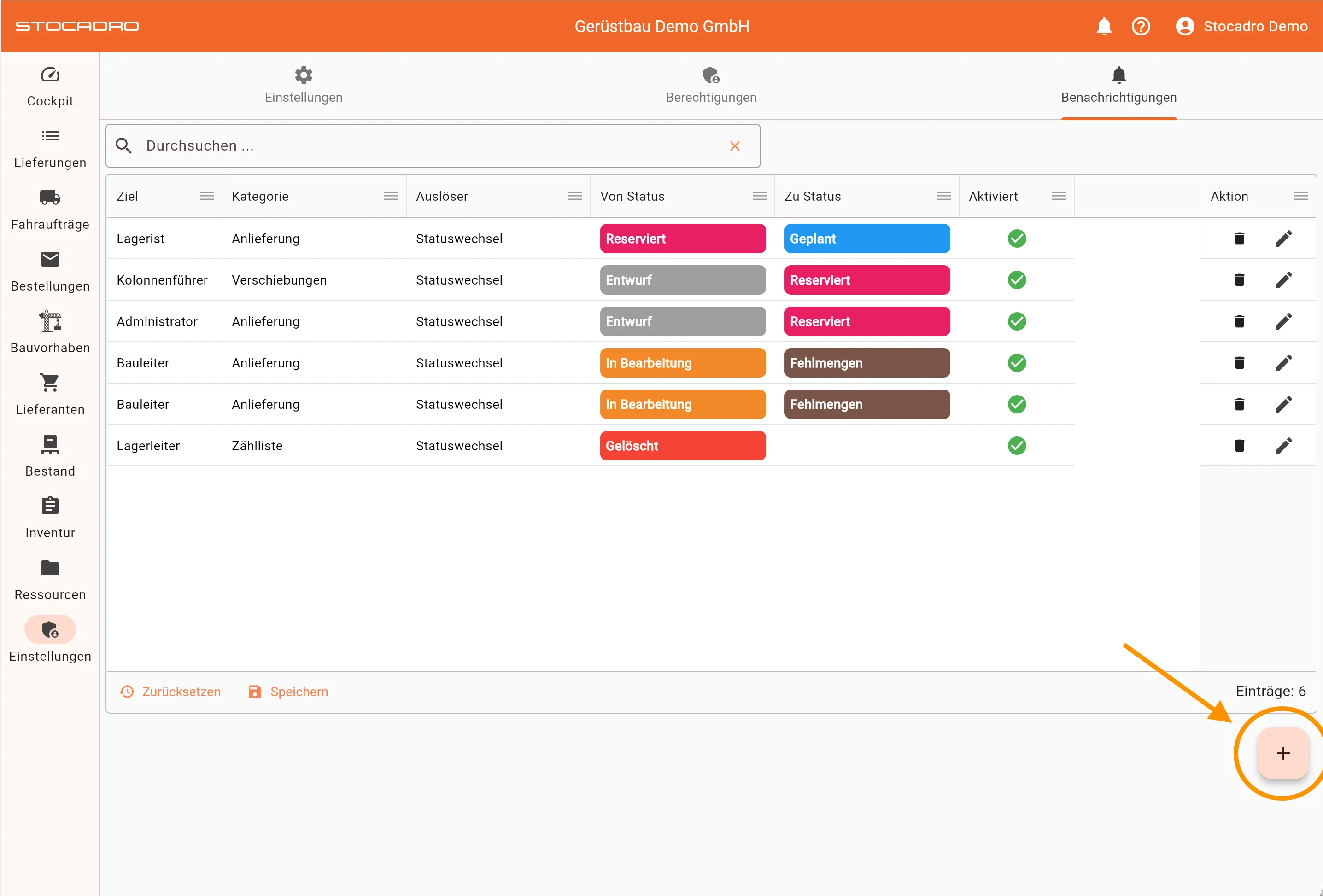
In the web app you will find notifications under Group Settings.
Creating a notification rule
Section titled “Creating a notification rule”You create a new notification rule by clicking the plus icon at the bottom right. This opens the detail view for configuring the rule.
When creating a notification rule, you can set the following parameters:
-
Role Defines which user role should receive the notification. You can choose from:
- Administrator
- Crew leader
- Driver
- Warehouse worker
- Dispatcher
- Site manager
- Warehouse manager
-
Category Determines which process the notification applies to:
- Delivery
- Order
- Supplier order
- Material planning
- Return
- Transfers
- Counting list
-
From status Starting status at which the rule applies:
- Unloaded
- Rejected
- Draft
- Done
- Missing quantities
- Loaded
- Deleted
- Planned
- Counted
- In progress
- Picked
- Paused
- Reserved
-
To status Target status at which the notification is triggered (same options as for From status)
-
Trigger Currently available:
- Status change
-
Enabled Checkbox to enable or disable the rule
Confirm the notification rule with Save to apply it.
Editing a notification rule
Section titled “Editing a notification rule”To edit an existing notification rule, click the pen icon in the Action column. You can then adjust all parameters of the rule.
Confirm the changes with Save.
Deleting a notification rule
Section titled “Deleting a notification rule”You can delete a notification rule by clicking the trash can icon in the Action column. Confirm the deletion to permanently remove the rule.
Best practices
Section titled “Best practices”- Set up notifications specifically per role to avoid information overload.
- Use status changes sensibly to make critical process steps transparent.
- Regularly review active rules and adjust them to changed workflows.