
Supplier orders
On this page you will learn how to create, edit and manage supplier orders in Stocadro. Supplier orders form the basis for procuring materials and can be created in various contexts, e.g. directly via suppliers, via delivery notes or as part of projects. Since suppliers can be distinguished into two types, “Purchase” or “Rental”, the return of rental material is also described here.
General operation
Section titled “General operation”Regardless of which area you are in, supplier orders are handled according to the same principles:
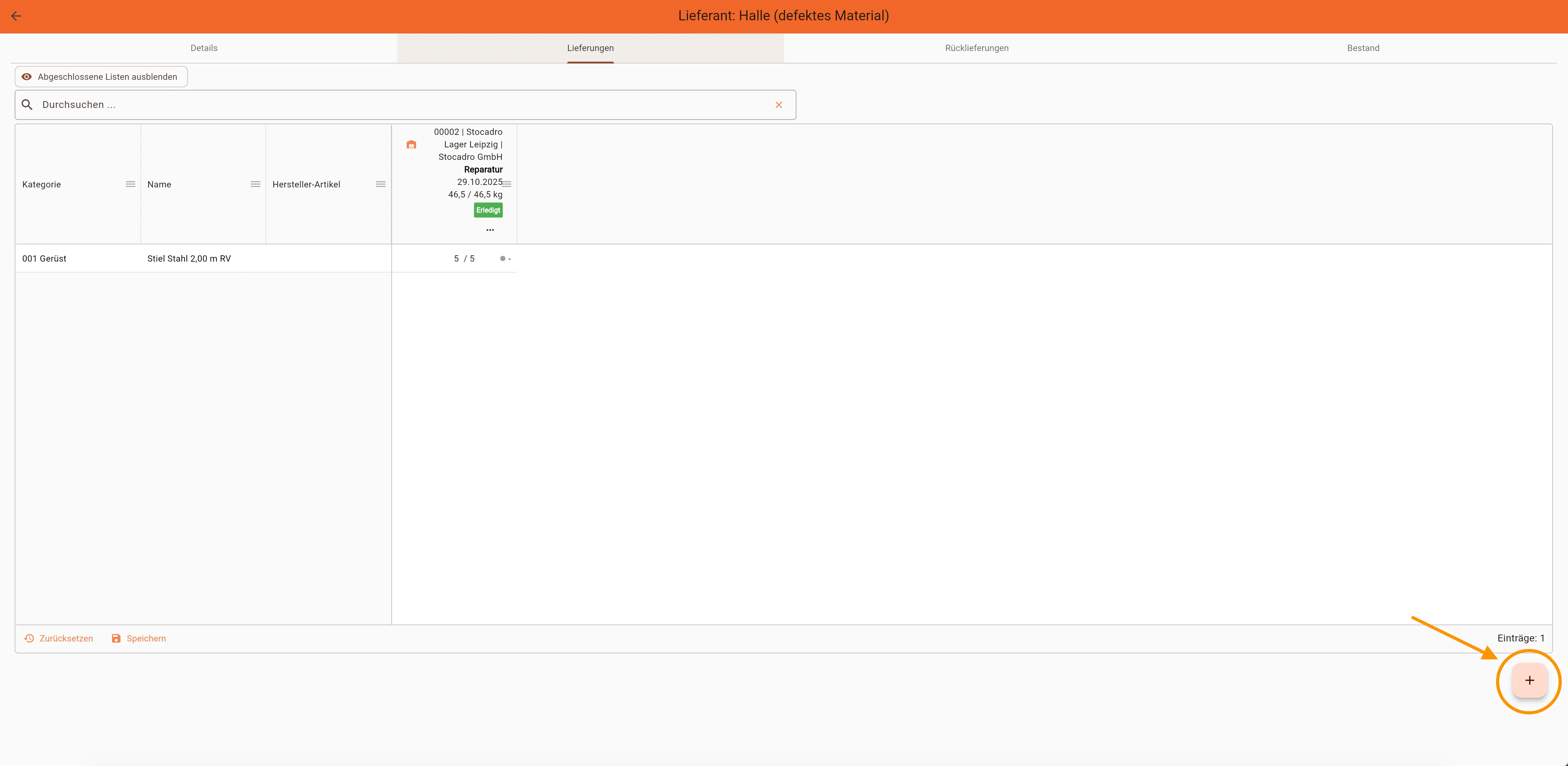
- Create new order: plus icon at the bottom right
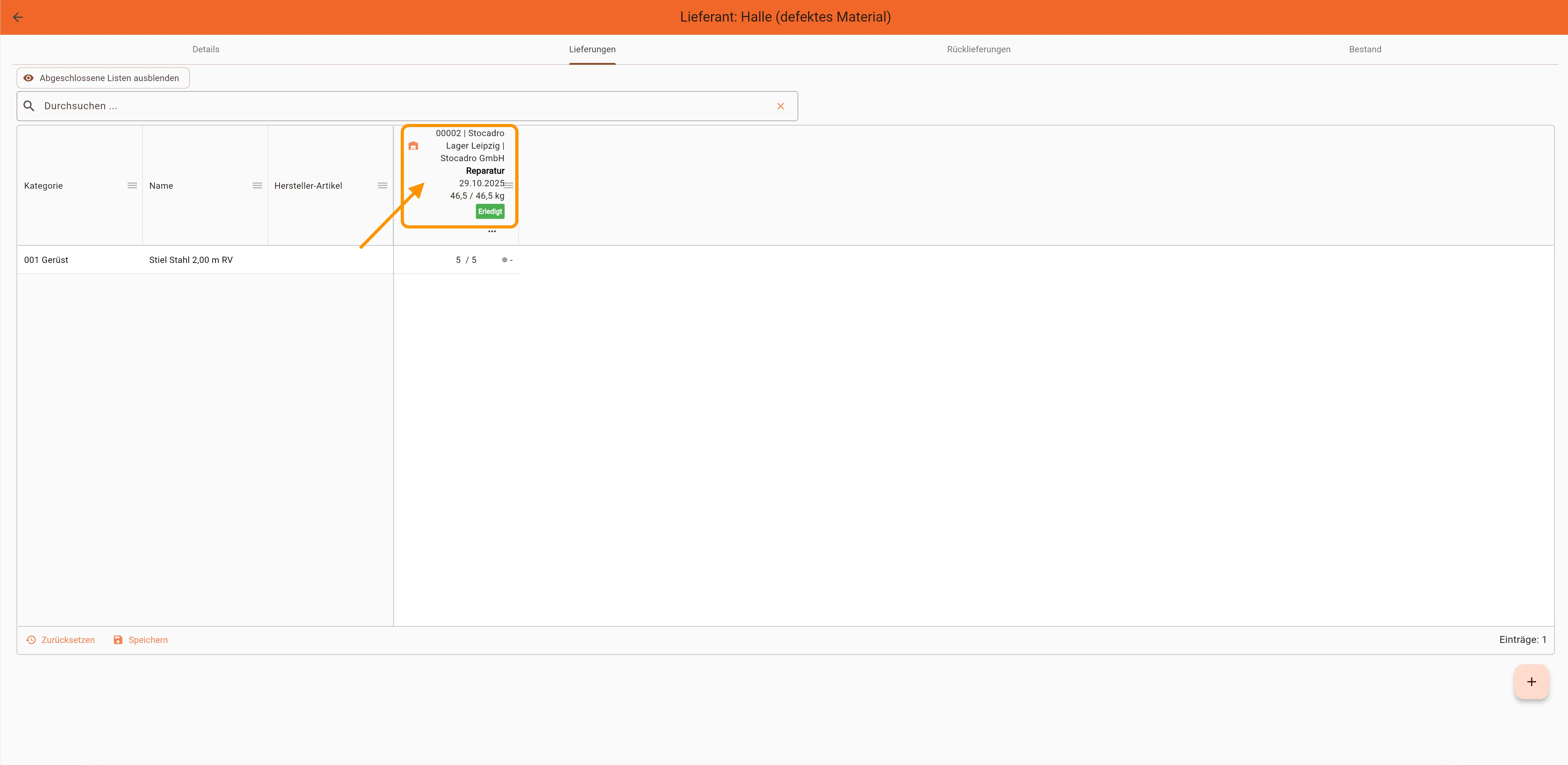
- Edit order: double-click the order, or click the arrow icon in the Action column
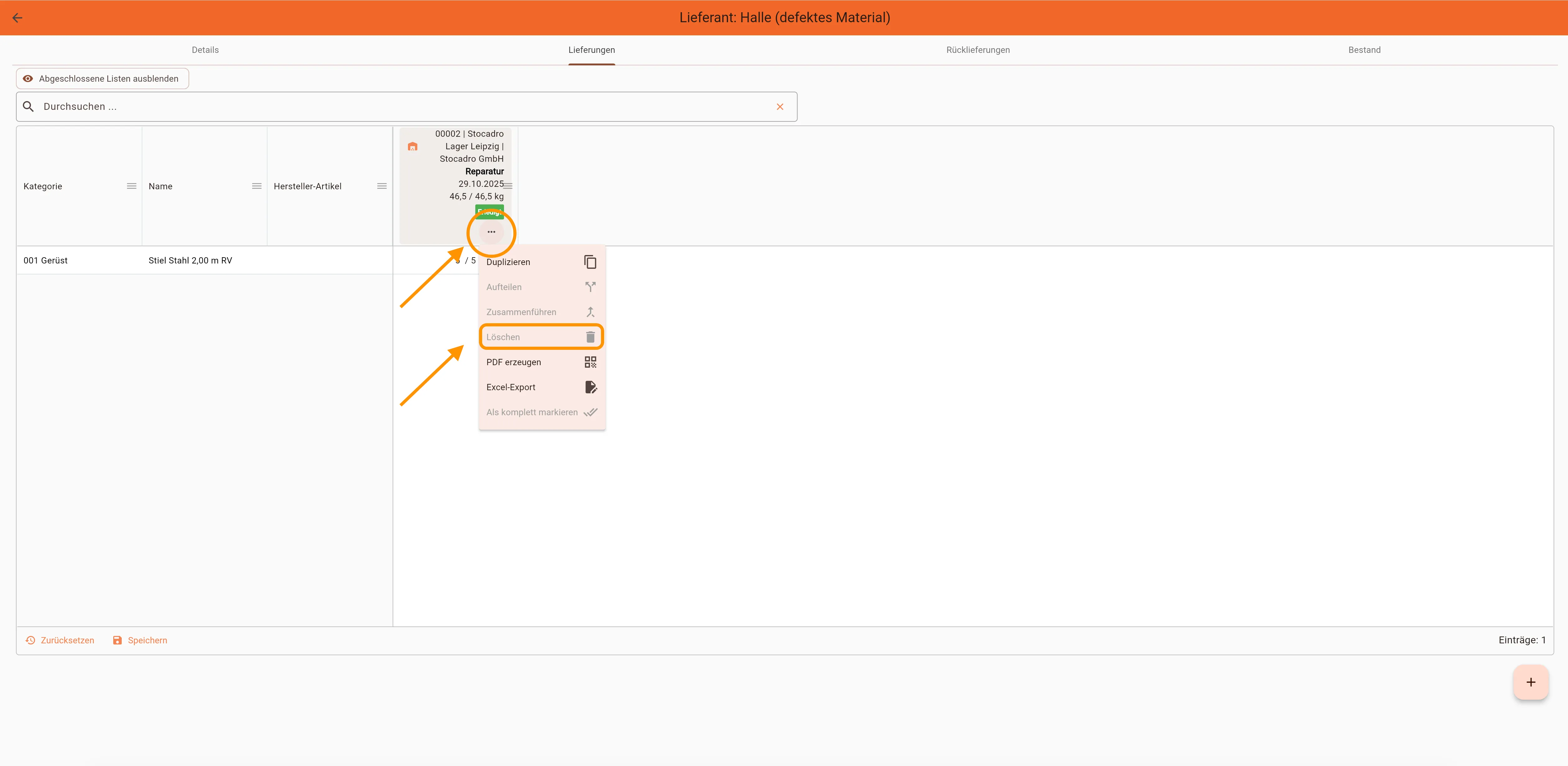
- Delete order: three-dot menu → Delete
Creating a supplier order
Section titled “Creating a supplier order”A supplier order can be created in several places in the web app. The functionality is identical; only the entry point differs. Orders cannot be created in the mobile app; there, similarly to return deliveries of scaffolding material, the receipt of the material is checked and corrected if necessary.
Under Suppliers
Section titled “Under Suppliers”- Open Suppliers
- Select a supplier
- Switch to the Deliveries tab
- Click the plus icon at the bottom right
Under delivery notes
Section titled “Under delivery notes”- Open Deliveries
- Switch to the Supplier orders tab
- Click the plus icon at the bottom right
Under projects
Section titled “Under projects”- Open a project under Projects
- Switch to the Deliveries tab
- Click the plus icon at the bottom right
Detail view of a supplier order
Section titled “Detail view of a supplier order”In the detail view, you can maintain the following information:
- Name of the order
- Start (here the supplier is to be selected, or is already preselected)
- Destination (here the destination, i.e. a warehouse or construction project, is to be selected)
- Delivery date
- Assigned to (here the order can be assigned to a user for processing at the destination)
- Comment (optional)
Three-dot menu
Section titled “Three-dot menu”Additional functions are available via the three-dot menu at the top right:
- Duplicate (creates a copy of the supplier order)
- Split (a new supplier order is created and the articles can be split between the two as desired)
- Merge (merges two supplier orders)
- Delete
- Generate PDF (generates an order form)
- Excel export
- Mark as complete (sets the actual quantity of the individual articles, i.e. the quantity actually delivered, to the target value)
Adding images
Section titled “Adding images”You can add image files both in the web app and in the mobile app.
Adding driving tasks
Section titled “Adding driving tasks”You can assign one or more driving tasks to a supplier order.
Adding material
Section titled “Adding material”There are two different ways to add material to a supplier order:
- Import articles
- Add articles
With the add articles option, articles can be selected from the articles stored under Resources, or new articles that have not yet been stored can be added by clicking the plus icon at the top right.
Status
Section titled “Status”A supplier order has the following status values:
- Deleted
- Draft
- Planned (the order now appears under Deliveries → Incoming in the mobile app and can be processed)
- Unloaded
- In progress
- Done (the material is added to the total stock)
Three-dot menu
Section titled “Three-dot menu”You can run the following commands in the three-dot menu:
- Duplicate (creates a copy of the supplier order)
- Split (a new supplier order is created and the articles can be split between the two as desired)
- Merge (merges two supplier orders)
- Delete
- Generate PDF (generates an order form)
- Excel export
- Mark as complete (sets the actual quantity of the individual articles, i.e. the quantity actually delivered, to the target value)
Log file
Section titled “Log file”To see who has made which changes to the supplier order, click the stopwatch icon at the top right.
Return of rental material
Section titled “Return of rental material”If rental material is to be sent back to the supplier, please go to Suppliers. Please double-click the supplier and then go to the Returns tab.
You create a new return by clicking the plus icon at the bottom right of the screen and selecting the Delivery option. For the correct creation of supplier orders, it is important that all relevant data is filled in completely and correctly.
Best practices
Section titled “Best practices”- Use descriptive names for supplier orders (e.g. project name or article group).
- Check the start and destination details carefully to avoid mismatches.
- Use comments for internal notes to purchasing or the warehouse.