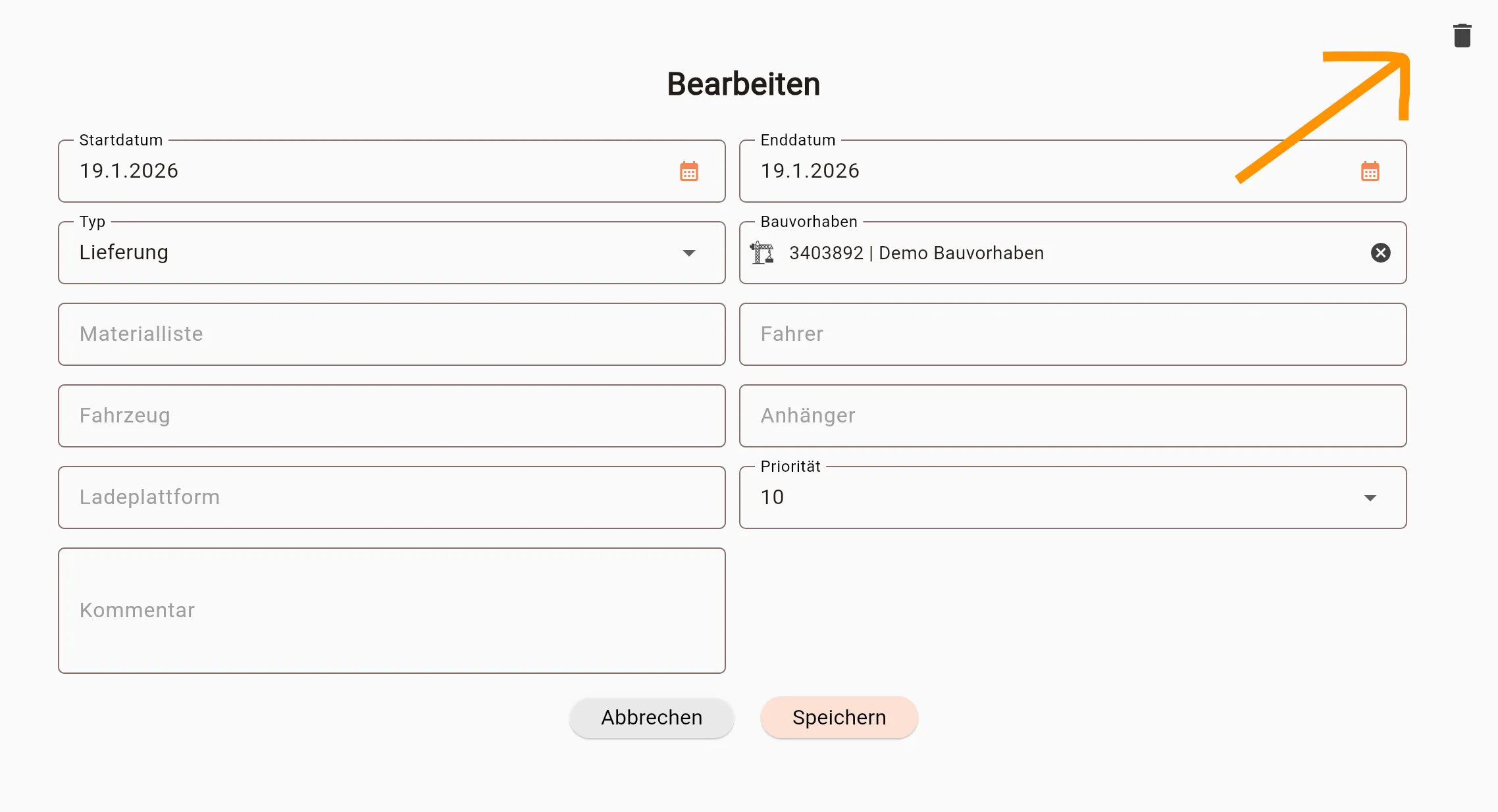
Create
There are two ways to create a task: directly or from an existing material list. Stocadro’s standard delivery and return processes are configured so that tasks do not have to be created manually.
From an existing material list
Section titled “From an existing material list”By default, Stocadro automatically creates tasks for the following list types:
Loading list
- Warehouse task: picking
- Transport task: delivery
Return delivery
- Warehouse task: storage
- Transport task: pickup
Material transfer
- Transport task: transfer
To create these tasks:
- Create the list with the Draft status.
- Select the start, destination, and desired delivery date.
- Move the list to the Planned status, optionally using Reserved as an intermediate status.
The following dialog appears when you move the list to Planned:
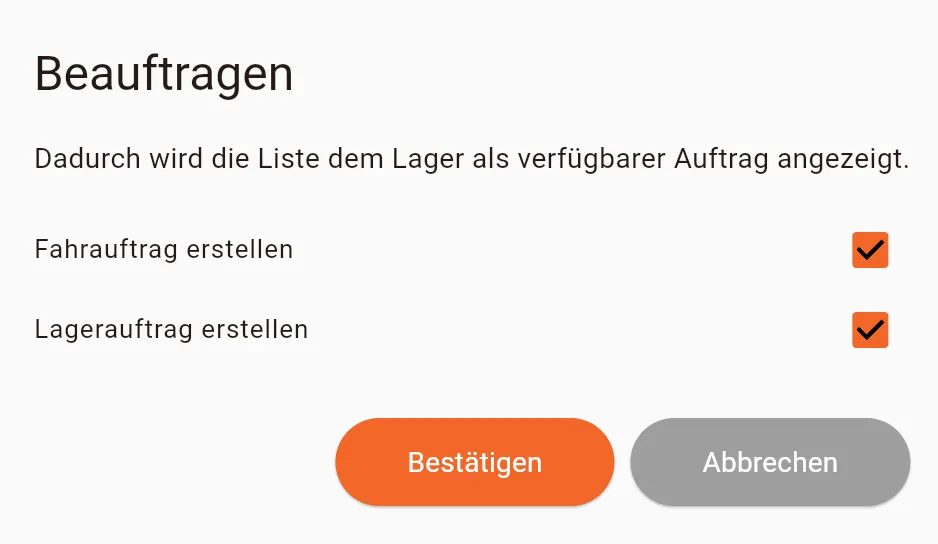
The checkboxes for creating the warehouse and transport tasks are already selected. Click Confirm to create the tasks listed above.
The new tasks are then shown under Tasks in the delivery.

You can click Add to create more tasks, for example if a list requires several trips.
Without an existing delivery
Section titled “Without an existing delivery”To create a task directly without an existing material list, such as a pickup task for a return delivery, open the Tasks tab and click the plus icon at the bottom right.
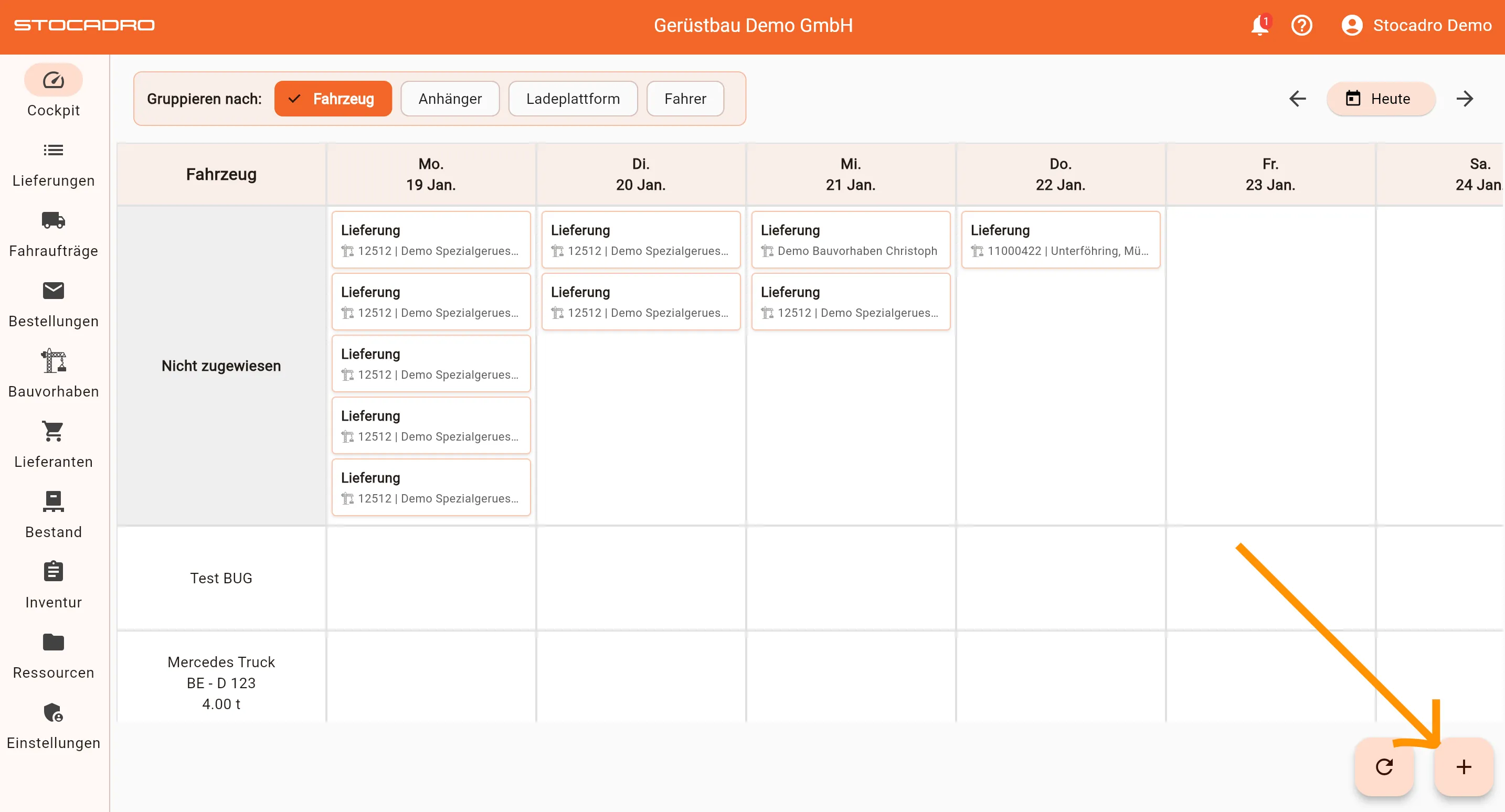
A dialog for creating a new task appears. All task fields are described in the Introduction.
Deleting tasks
Section titled “Deleting tasks”A task can be deleted from its detail view by clicking the trash icon.