Full stock taking
A full stock taking event includes all stock-controlled parts at the selected warehouse locations.
Create a stock taking event
Section titled “Create a stock taking event”Open Stock Taking in the web app and click the plus icon at the bottom right.
Enter a name under Enter Event Name and click Next. Then select the warehouse locations to include. You can select multiple locations.
Open a stock taking event
Section titled “Open a stock taking event”Double-click its name or click the arrow on the right side of the entry.
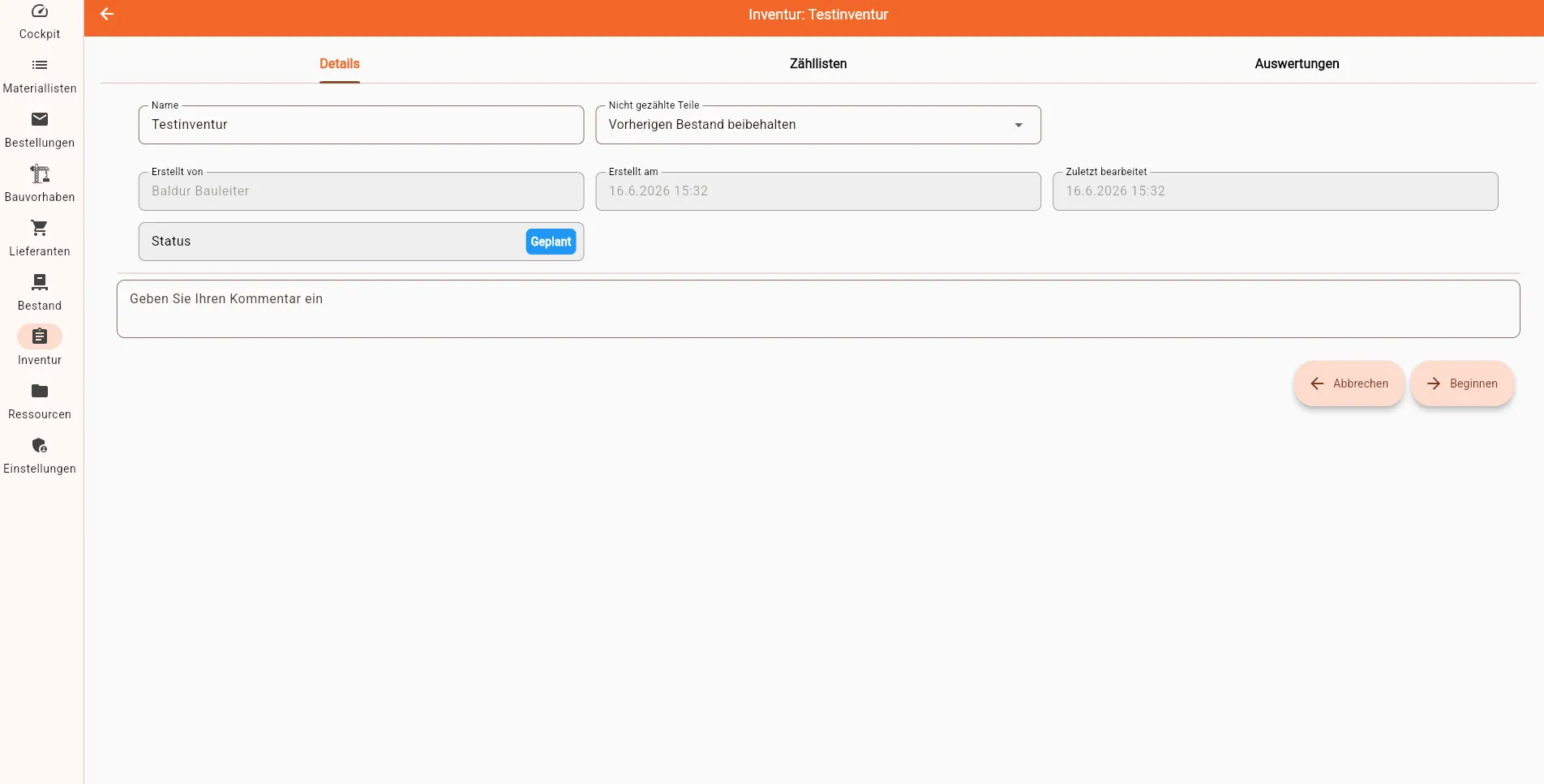
The stock taking event consists of Details, Counting Lists, and Evaluation.
Details
Section titled “Details”Under Details, you can change the name and define how uncounted parts are handled:
- Keep Previous Stock
- Set Stock to 0
You can also adjust the status using the button at the bottom right.
Counting lists
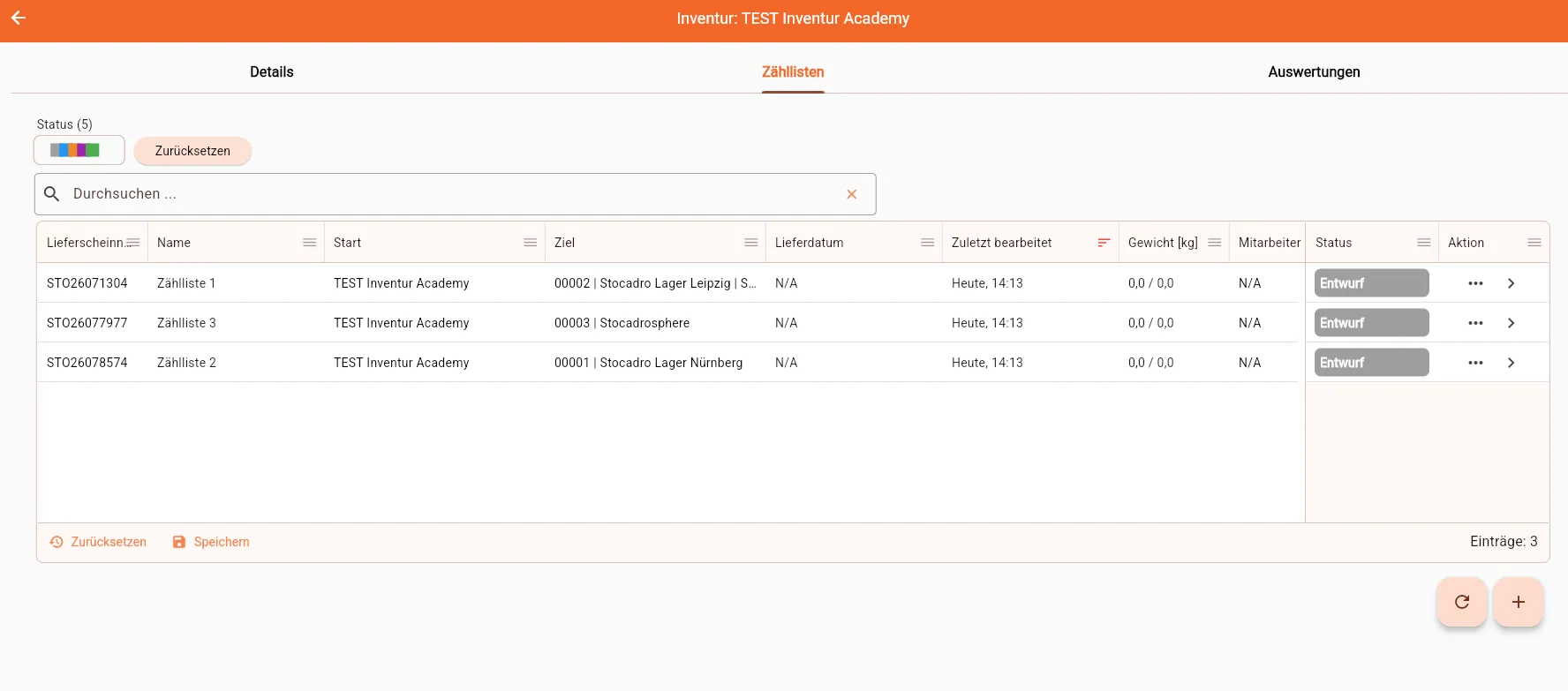
Section titled “Counting lists”Under Counting Lists, you can find the lists for the selected warehouse locations. Open a list to enter the counted quantities.
Each counting list has a destination. Its stock is updated with the count results when the stock taking event is completed.
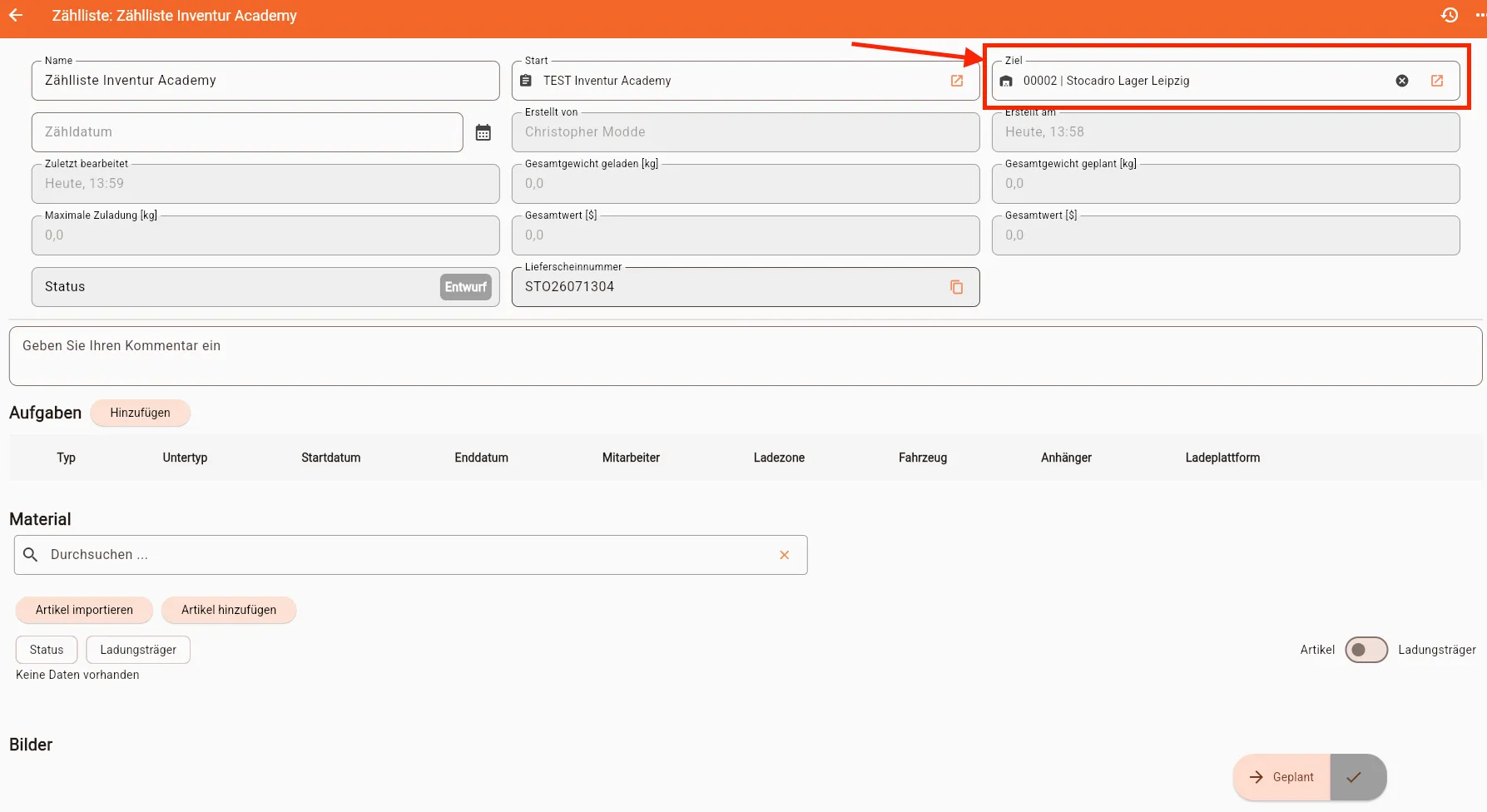
Set the list to Counted after all quantities have been entered.
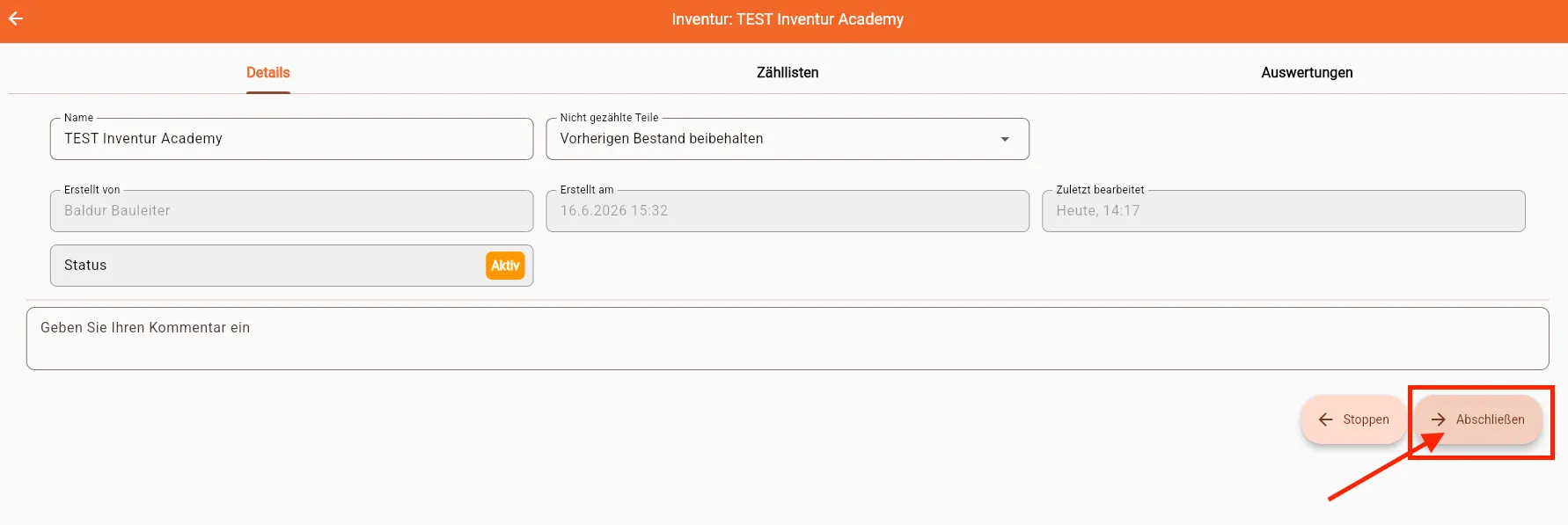
Complete the stock taking event
Section titled “Complete the stock taking event”The event can only be completed after all counting lists have the Counted status. Completing it updates the stock at each destination with the recorded results.