
Assigning
There are two ways to assign a task: in the ‘Edit’ dialog, or with the Stocadro planning board.
With the planning board
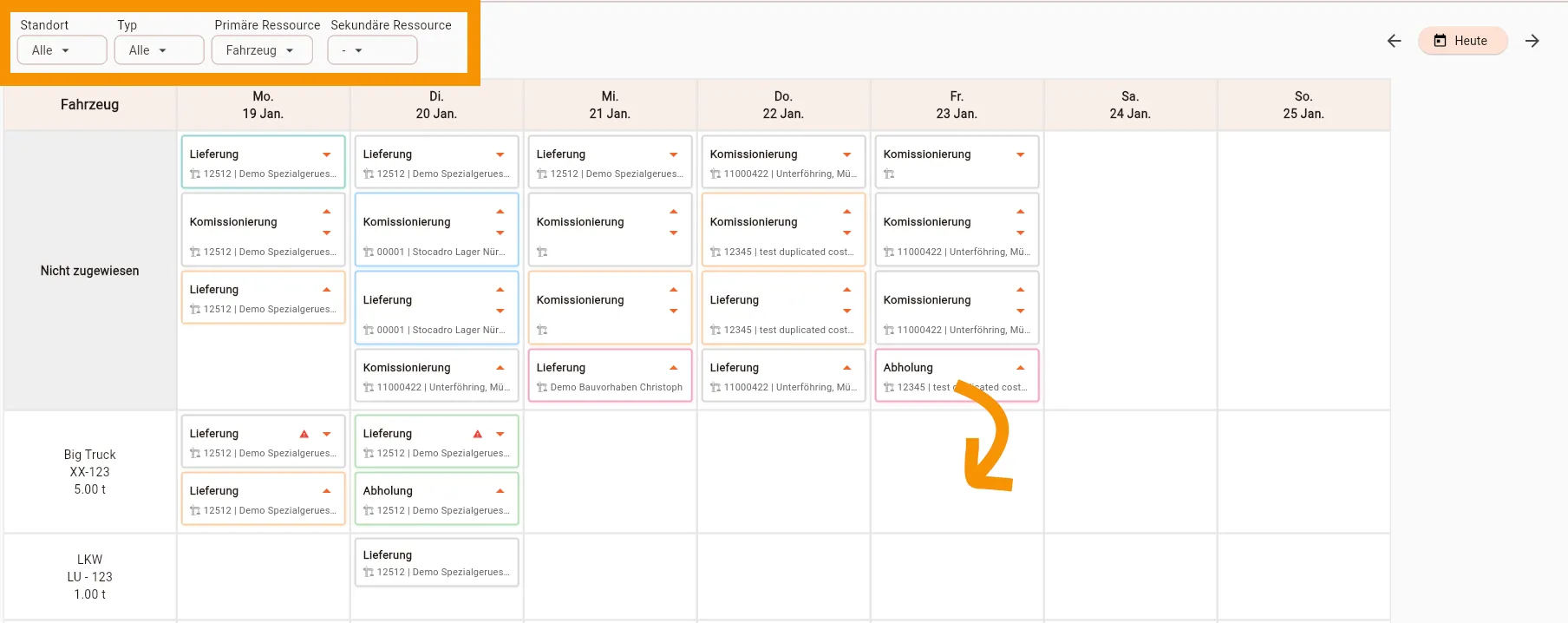
Section titled “With the planning board”A task is assigned to a resource directly via the calendar view in the “Tasks” tab.
The view can be configured with the following parameters:
- Location: filters tasks for a specific warehouse location
- Type: filters tasks of a specific type (Warehouse or Transport)
- Primary resource: determines which resource is shown in the rows of the table and thus assigned (options: vehicle, trailer, loading platform, employee, loading zone)
- Secondary resource: for a better overview, a second resource can also be shown, e.g. vehicle and loading zone, or loading platform and employee.
All tasks that do not yet have an assignment for the selected resource are then shown in the top row of the table. The assignment to a free resource is done via drag & drop.
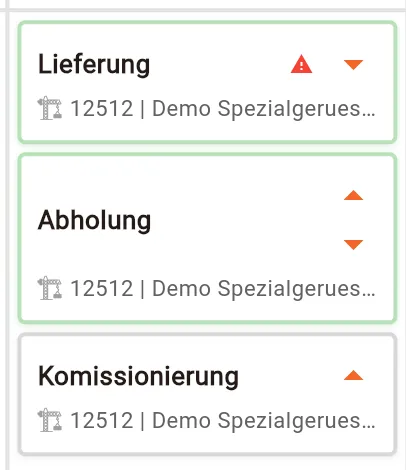
If several tasks are stored for a resource on one day, the order can be edited using the arrows. Behind the scenes, this adjusts the ‘Priority’ field. So, to define the order, you can also edit this field directly.
Manually
Section titled “Manually”Alternatively, resources can also be assigned in the detail view of a task. This can be reached:
- by double-clicking a card in the planning board
- by double-clicking a row in the table view of tasks
- by double-clicking a task within a delivery